
The "Payroll Process" in WrkSpot consists of assuring employee timecards are complete and approved and that any time off requests have been approved for the pay period.
Employees must submit their timecards to their supervisors for approval via the WrkSpot mobile app. This allows you to make sure that all hours are reported correctly and that payroll is accurate.
The payroll process in a nutshell:
1. Make sure all non-exempt employee timecards are complete and approved (timecard screen)
2. Approve any time off requested for the pay period (timecard > timeoff)
3. Audit that all exempt employees appear on the timecard screen.
4. Approve and initiate the payroll.
5. Download the payroll file and match hour totals to timecard screen or Timecard Detail Report.
6.Upload the payroll file to your payroll provider, again auditing total hours and any adjustments.
The Timecard Status Dashboard Card gives a summary of how many timecards need to be approved.
Information - Timecard Status Dashboard Card
1. Make sure all timecards are complete and approved (timecard screen)
In the left navigation menu, select People > Timecard> Timecards.
You may click on each individual timecard to view its details, update the timecard and approve or override employee approval to push the hours to payroll. Refer to the legend below to understand the color-coded timecard statuses.
Timecards in white are approved. This color timecard was submitted by the employee by clocking in and clocking out on the WrkSpot app on a mobile device.
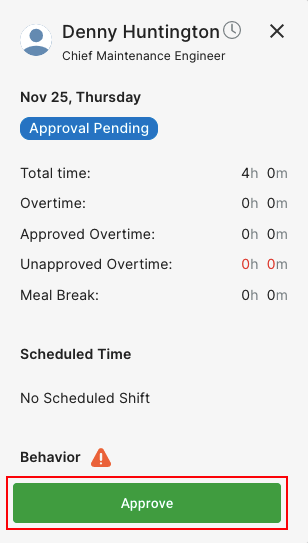
Timecards shown in blue indicate are pending the supervisor's approval. To approve these, click on the timecard, then click Approve.
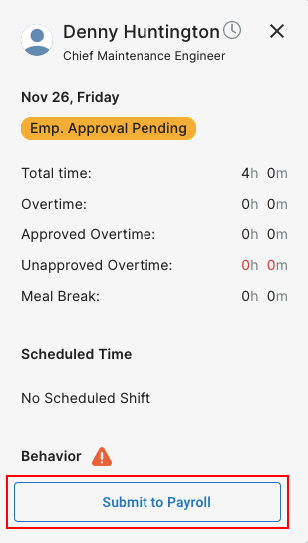
Timecards shown in yellow indicate that they were manually entered by the supervisor are pending the employee's approval. The employee should approve these timecards via the WrkSpot mobile app by navigating to Modules > My WRKSPOT > Timesheet. To approve, employee should tap on a timecard labeled Pending Your Approval and tap Approve.
A manager preparing payroll can also click the notification icon and send a notification in mass to all employees with pending timesheets for that pay period.
WrkSpot also allows supervisors to override employee approval for supervisor-entered timecards and submit them for payroll when employees are unable to approve their timecards in time for payroll. To do so, click on a timecard pending employee approval (shown in yellow) and click Submit to Payroll. Enter a reason for override and click Yes, Override.
Timecards shown in purple indicate that they have been overridden by a supervisor and submitted to payroll without employee approval. Employees will have to approve later.
To quickly approve all employee-submitted timecards (shown in blue) for an employee for the entire pay cycle, click the check mark in the employee's row in the Actions column.
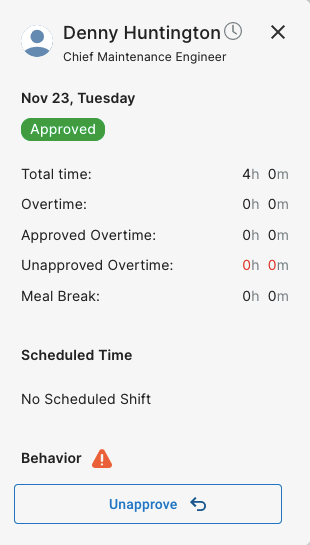
It is also easy to unapprove a timecard, click on an approved timecard (shown in white) and click Unapprove. You may then make changes or delete the timecard.
Information - Step 2 Approve Time off Requests
Information - Step 3 Review Exempt Employees
4. Approve and initiate the payroll.
Once all timecards have been approved, navigate to People > Payroll.
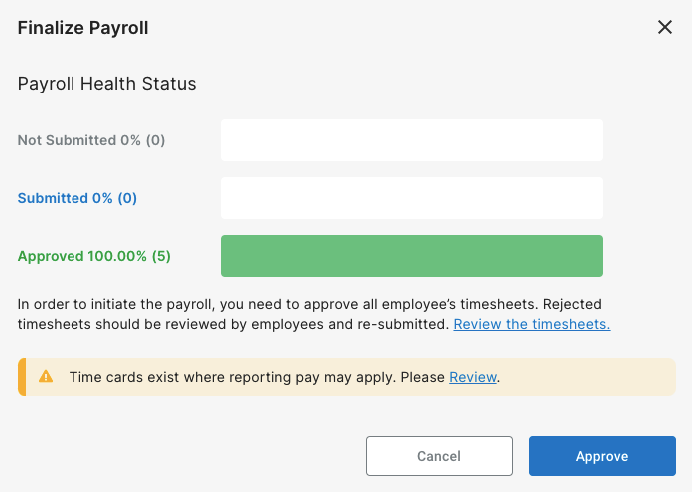
Click Approve in the top-right corner. The Payroll Health Status will indicate if there are any timecards that still need to be approved. When you reach 100% approval as shown below, the Approve button will be clickable. Click Approve. Next, click Initiate.
Download the payroll file and match hour totals to timecard screen.
5. Once payroll is approved/initiated, the Approve button in the top-right corner becomes Export if you have the correct permissions. (Some companies choose to have their corporate payroll staff perform this function instead.) If you have permission to export, you may download payroll files showing totals by week or total by pay period.
Information - Print Timecard Detail Report
Upload the payroll file to your payroll provider, again auditing total hours and any adjustments.
6. Upload the payroll file to your payroll provider such as ADP, Gusto or Paychex. Tie the final Payroll Register from payroll provider back to the totals on the WrkSpot Payroll screen to audit.
Comments
0 comments
Please sign in to leave a comment.