
Wrkspot enables you to schedule employees, either by creating shift templates for recurring schedules, or assigning individual shifts to individual employees. Employees are also able to submit PTO and scheduling requests that you can approve or deny, all in Wrkspot itself. Employees receive alerts about new schedules being updated and can consult the Wrkspot app to check their schedules on their phones.
To Create a Shift Template
- In the left navigation menu select People > Schedule and click on Shift Template.
- Click the + Create shift template button on the right. Enter a name for your template, and enter the hours you would like to assign to this shift in the relevant boxes. Select a color to code the template.
- Click the blue Assign option and select which positions you would like to assign the shift to in the dropdown menu.
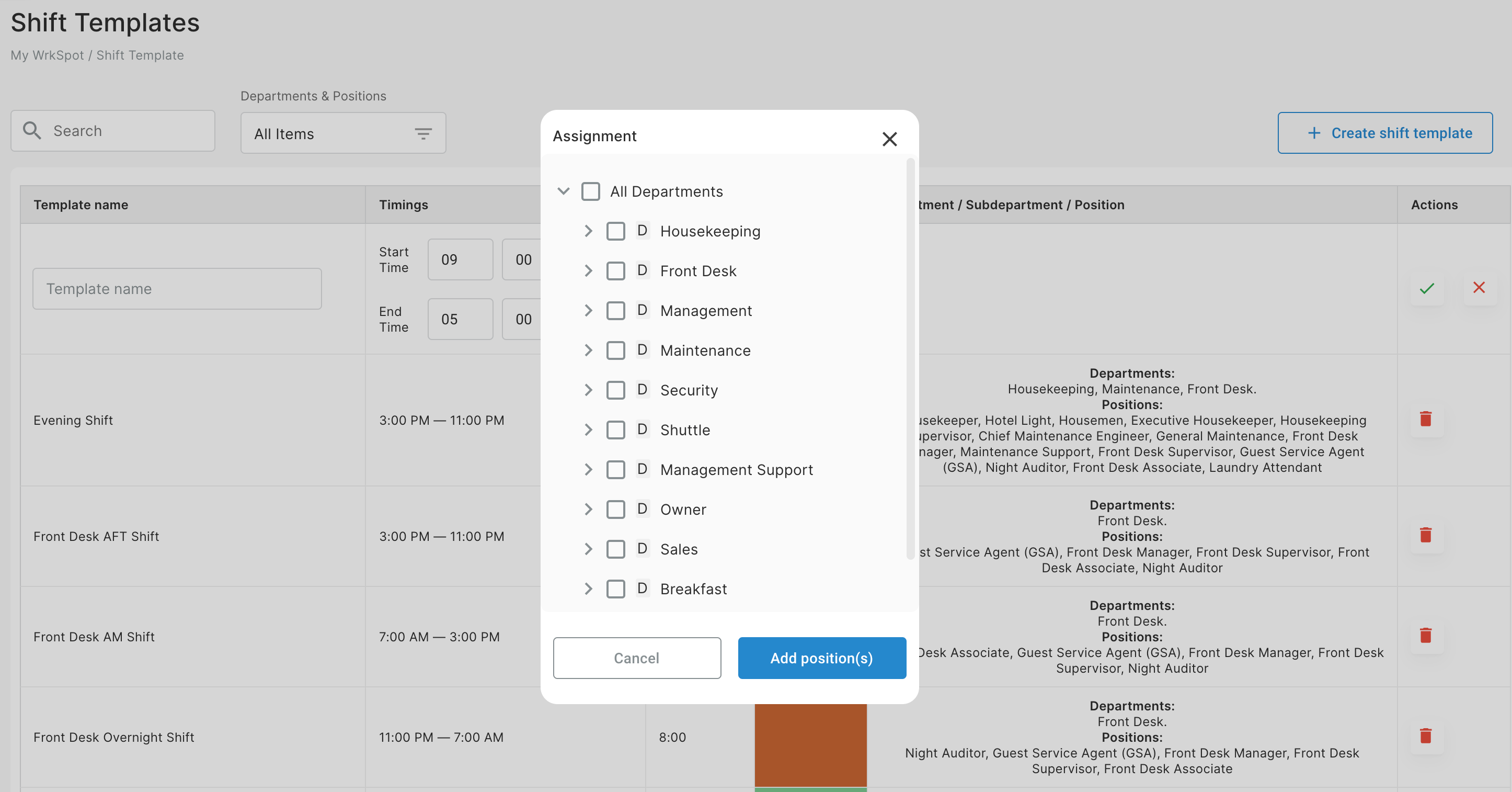
- Click on the green check mark to finish creating and assigning the shift template.
Note: If you need to make changes to an existing template, you must click the  icon and create a new one.
Using Scheduler
1. In the left navigation menu, select People > Schedule and click on the Scheduler tab.
2. Select the dates for the correct Paycycle in the first box. From the dropdown menu in the second box, select the Positions you wish to schedule. 
3. Click on a day of the week to schedule shifts for any employee listed under that template. Each department has it's own row, with sub-departments and positions combined for an easier view.
Tip: You can also filter by employee, allowing you to see the schedule for one or more specific individual.
4. Select which employee you would like to assign to the selected shift. On this screen, you can select all the days on which you would like to assign this shift to this employee. If you are ready to release this schedule as is, turn on the slider that says Publish immediately, this will send your changes to the employee. Click the blue Save button to finish creating the schedule.
Modifying the Schedule
- Edit Assignment tool allows you to redo an employee's schedule under each template. Simply click the
 icon next to their name.
 - If you schedule an employee with a conflicting assignment/timeoff, the color indicator will split to reflect that status.
- Custom Shifts can be created from the main Scheduler page and assigned to multiple employees at once.
- Save and Publish to send your changes to the employee.
Comments
0 comments
Please sign in to leave a comment.